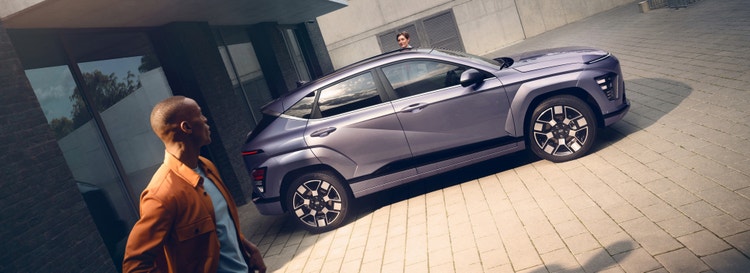
Your Hyundai vehicle comes with two proximity keys, which provide passive entry and keyless start ability, but with Digital Key, you won’t need them to operate the car. You can also purchase an NFC Card Key that can fit inside a billfold, and substitute for your phone for valet services, leaving the vehicle to be serviced, or use in case your phone runs out of power.
Possibly the most useful Digital Key feature is the ability to enable vehicle operating access to family or friends at any time. They key is shared by visiting Apple Wallet or Samsung Pass app then sharing a key to a contact using the messaging app. When they accept, they can operate your vehicle. You can have up to three Shared Keys, and the primary and secondary users can set up their own presets for driver-seat and mirror position, climate, audio preferences and more. As the primary user, you can control when a Shared Key can be used. You can also end a Shared Key’s capability at any time by using Apple Wallet or Samsung Pass app. Hyundai Digital Key is currently compatible with select Samsung and iPhone phones. Check with your device manufacturer for specific device and software requirements.
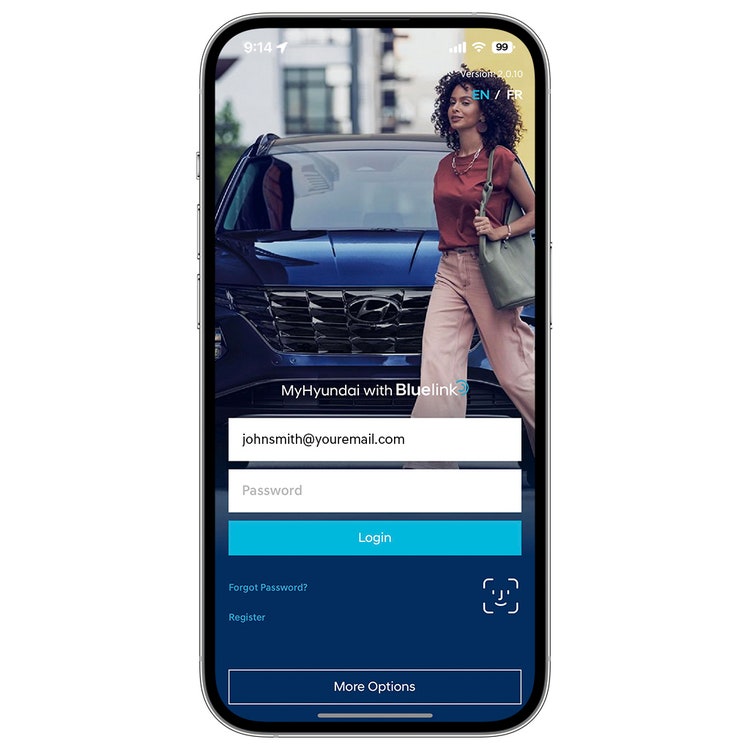
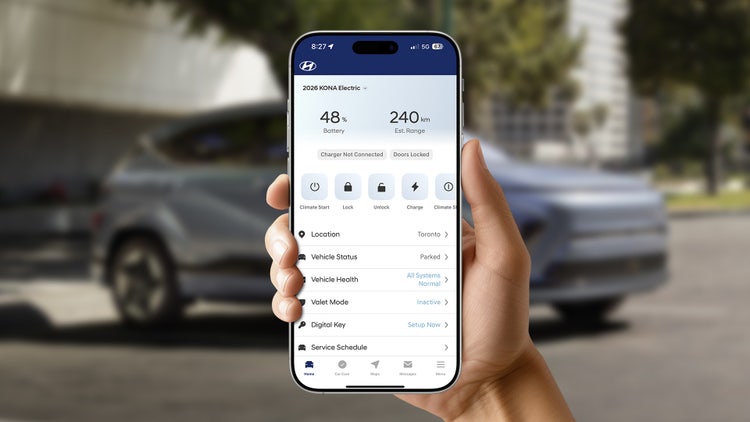
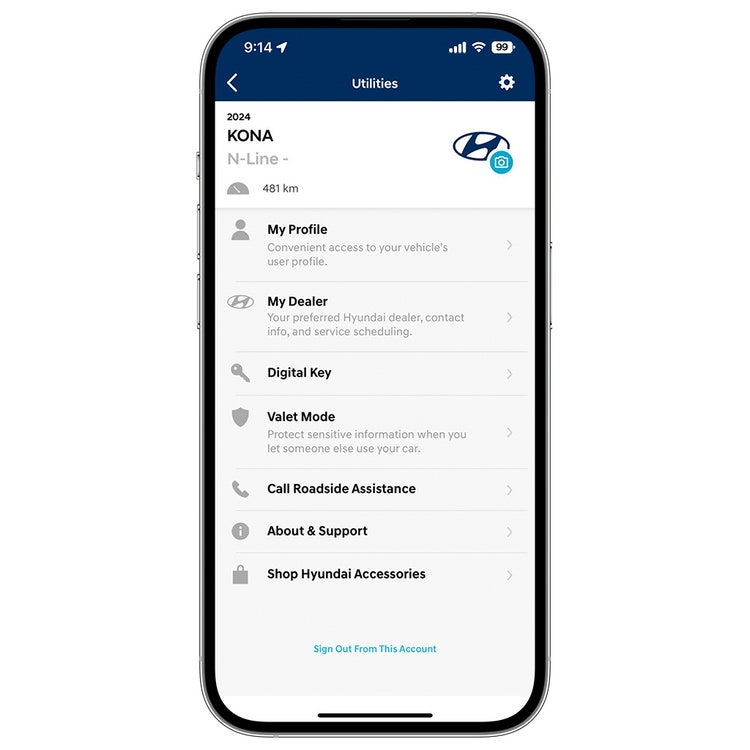
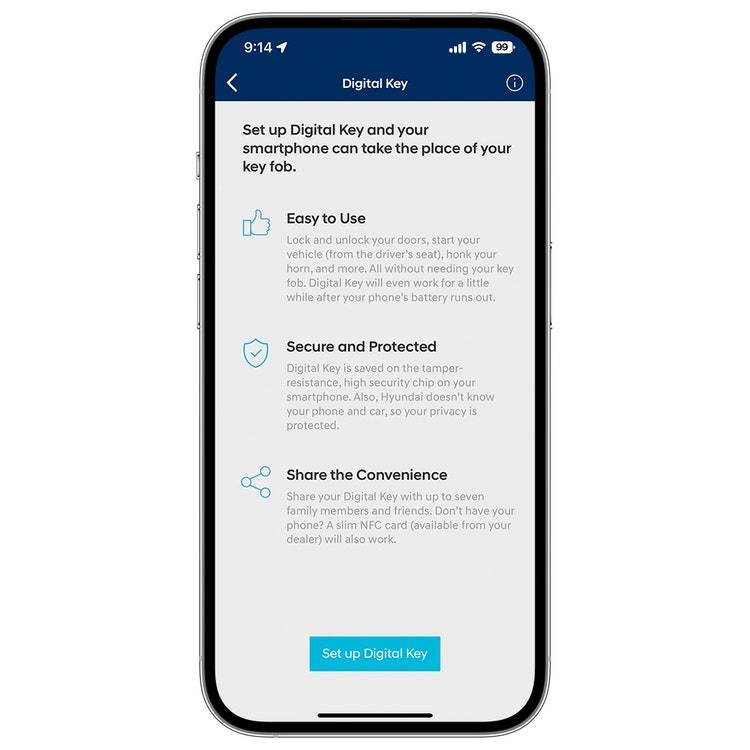
Samsung Devices: If the user is logged into the MyHyundai with Bluelink app and lands on this screen using a Samsung device, then the following instructions should be displayed:
For Samsung devices supporting NFC only, tap on “Start Pairing” and follow your smartphone’s instructions by placing your device on the wireless phone charger then follow the instructions on your vehicle’s display.
From the Vehicle screen, tap on Setup -> Vehicle -> Digital Key -> Smartphone Key -> My Smartphone Key, then select Save from the sub menu.
Apple Devices: If the user is logged into the MyHyundai App and lands on this screen using an Apple device, then the following instructions should be displayed:
Tap on “Start Pairing” and follow your smartphone’s instructions by either placing your device on the smartphone tray (NFC Only) then follow the instructions on your vehicle’s display.
From the Vehicle screen, tap on Setup -> Vehicle -> Digital Key -> Smartphone Key -> My Smartphone Key, then select Save from the sub menu.
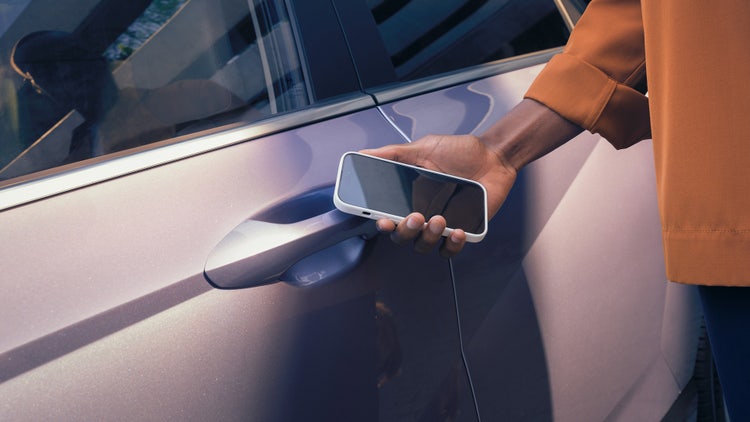
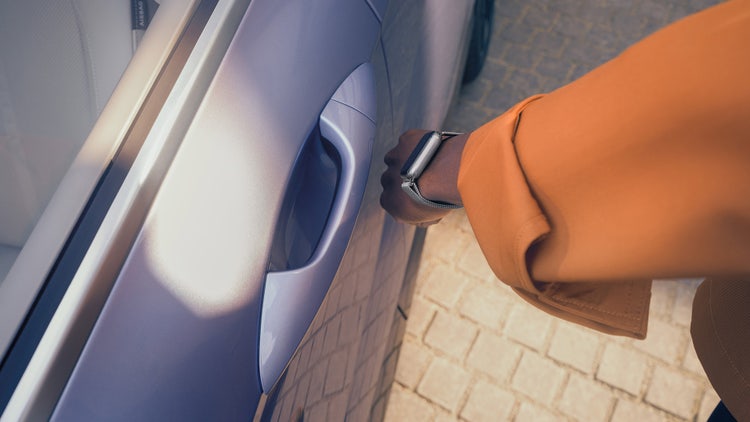
<p>
<span> a. If a user has an iPhone, then they will be able to:<br>
- Pair an iPhone device and use paired Apple Watch<br>
- Share up to 3 keys (3 iPhone devices +3 Apple Watches)<br>
b. If a user has a Samsung, then they will be able to:<br>
- Pair a Samsung device (Android watch is not currently supported)<br>
- Share 3 keys (3 Android devices)</span>
</p>
- Pair an iPhone device and use paired Apple Watch
- Share up to 3 keys (3 iPhone devices +3 Apple Watches)
b. If a user has a Samsung, then they will be able to:
- Pair a Samsung device (Android watch is not currently supported)
- Share 3 keys (3 Android devices)
a. iPhone: The NFC Antenna is located on the top edge of the iPhone.
b. Samsung: The NFC Antenna is located on the center back of the device.
c. Note: NFC Antenna position may vary depending on phone model. Please check with your smartphone manufacturer for the exact location.